admin.
Group management
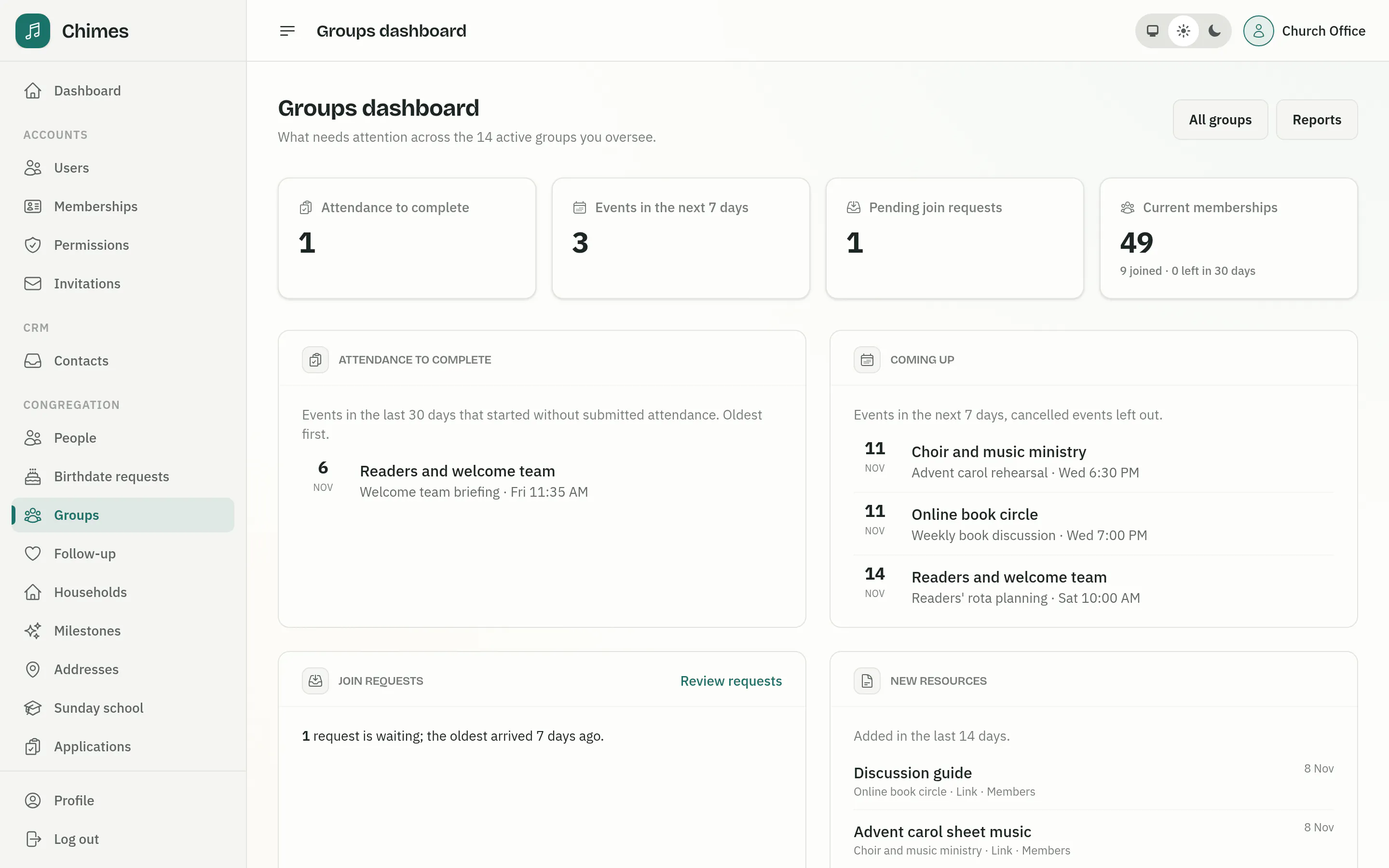
The church office sees every group from one dashboard: registers still to complete, the week's events, join requests waiting for a reply and groups that need a look, such as those with no leader or no members.
Groups keep their dated membership history, so rosters, announcements, volunteer invitations and follow-up rules built on a group stay accurate. Group types let you hand a ministry's groups to the person who runs it, without opening the rest of the church to them.
In short
What needs attention
The dashboard lists registers to complete, the week's events, waiting requests and groups with no leader, no members or no recent attendance.
Delegated by type
Type managers run their ministry's groups and leaders run their own, each with only the access that work needs.
History you can trust
Memberships are dated, registers keep their roster, and corrections, exports and automations are audited.
Groups, types and the tools around them
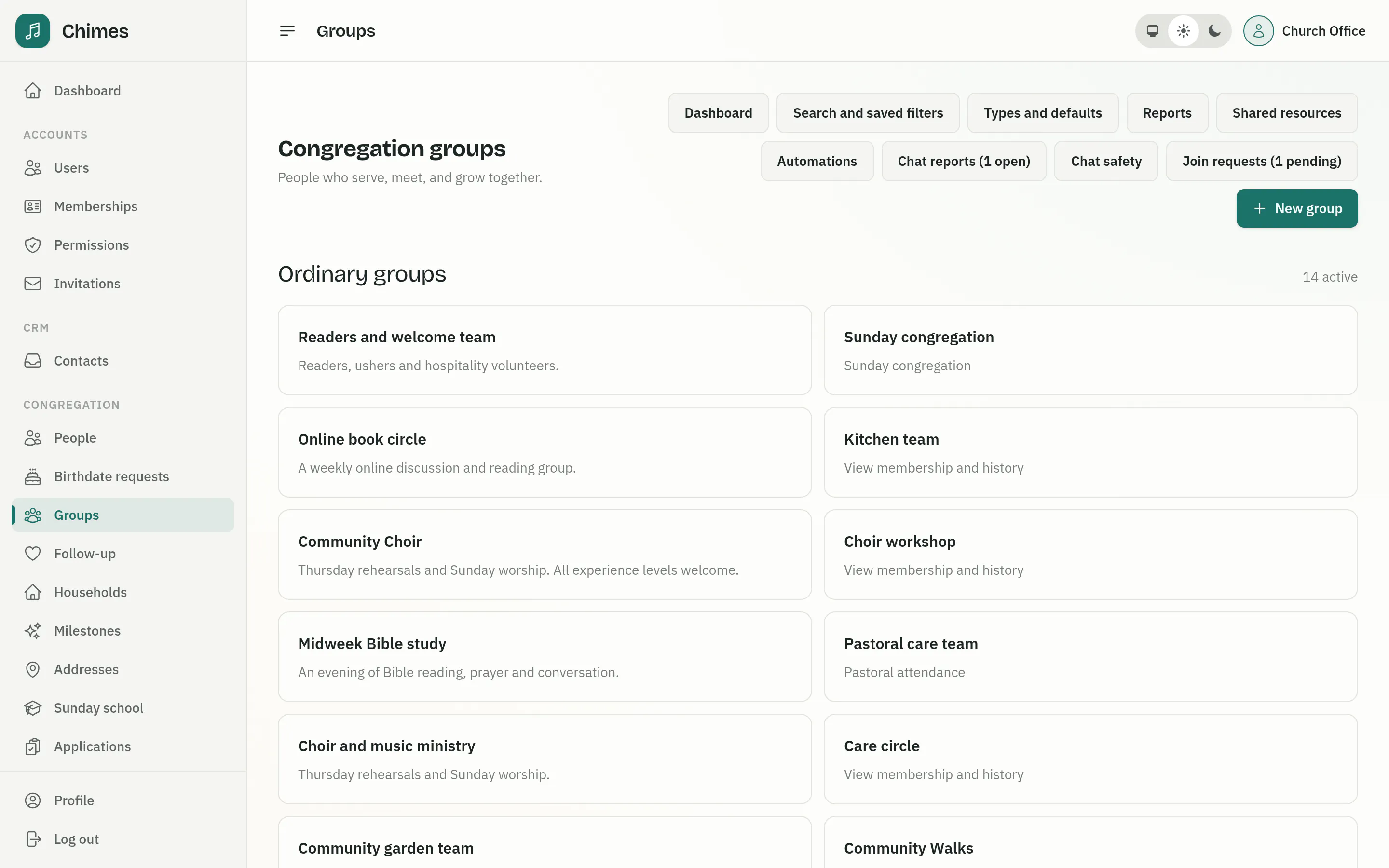
Each group belongs to a type, such as small groups or ministry teams, whose defaults new groups start with: how people join, chat, resource audience, event location, RSVPs and reminders. Changing a type's defaults later affects new groups only.
The office creates types and assigns their managers. A type manager runs the groups of that type, including leaders and attendance takers, but cannot rename the type or appoint other managers.
- check Search, filters by type, campus, tag and status, saved to your account
- check Group and membership lists as CSV, each download audited
- check Archive, restore and duplicate groups for a new season, one or many at a time
Decide what members and visitors see
For each group the office chooses whether it is listed for members and published on the website, how people join, whether members can see each other's names, and whether the group is confidential. A confidential group hides who belongs and has no chat.
Enrollment can close on a date or when a capacity is reached, and the office can still add someone past either with a recorded reason. Keep groups that drive pastoral follow-up on Request to join, so that nobody adds themselves without review.
- check Hidden by default, listed one group at a time
- check Hidden, approximate or exact public location
- check Chat on or off, and whether members or only leaders start conversations
One queue for every request to join
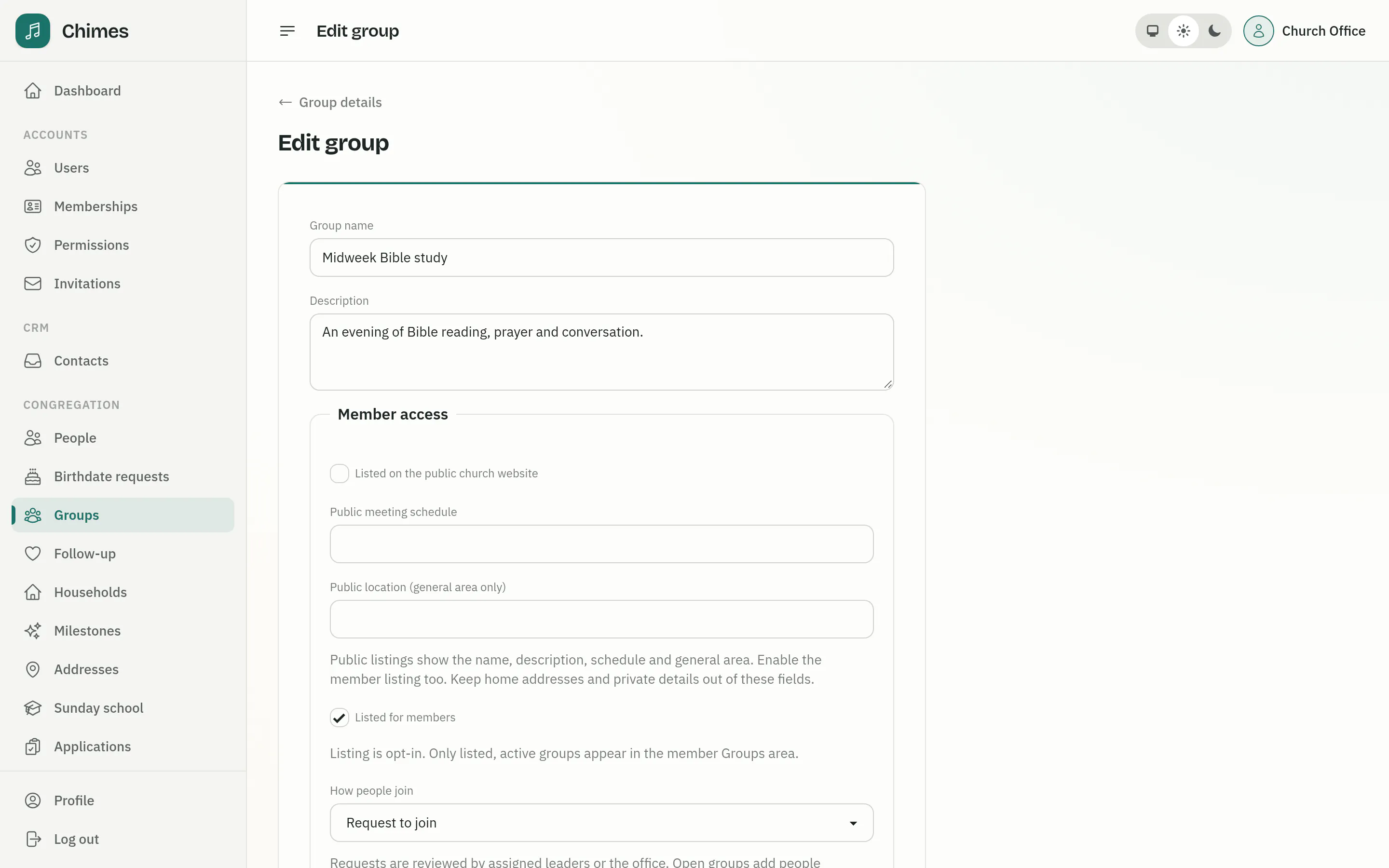
Leaders decide requests for their own groups in the member app, and the office has every request in one queue. A reviewer approves with a start date, which defaults to today, or declines, and can add a reply either way.
Decided requests are kept, so the queue's filter reaches approved, declined, withdrawn and cancelled history. Archiving a group cancels its pending requests and tells each person who asked.
- check Separate permissions for reading the queue and deciding
- check Reviewer emails that contain only a link, so names stay in the console
- check Approval email on by default, decline email off
Attendance and participation across groups
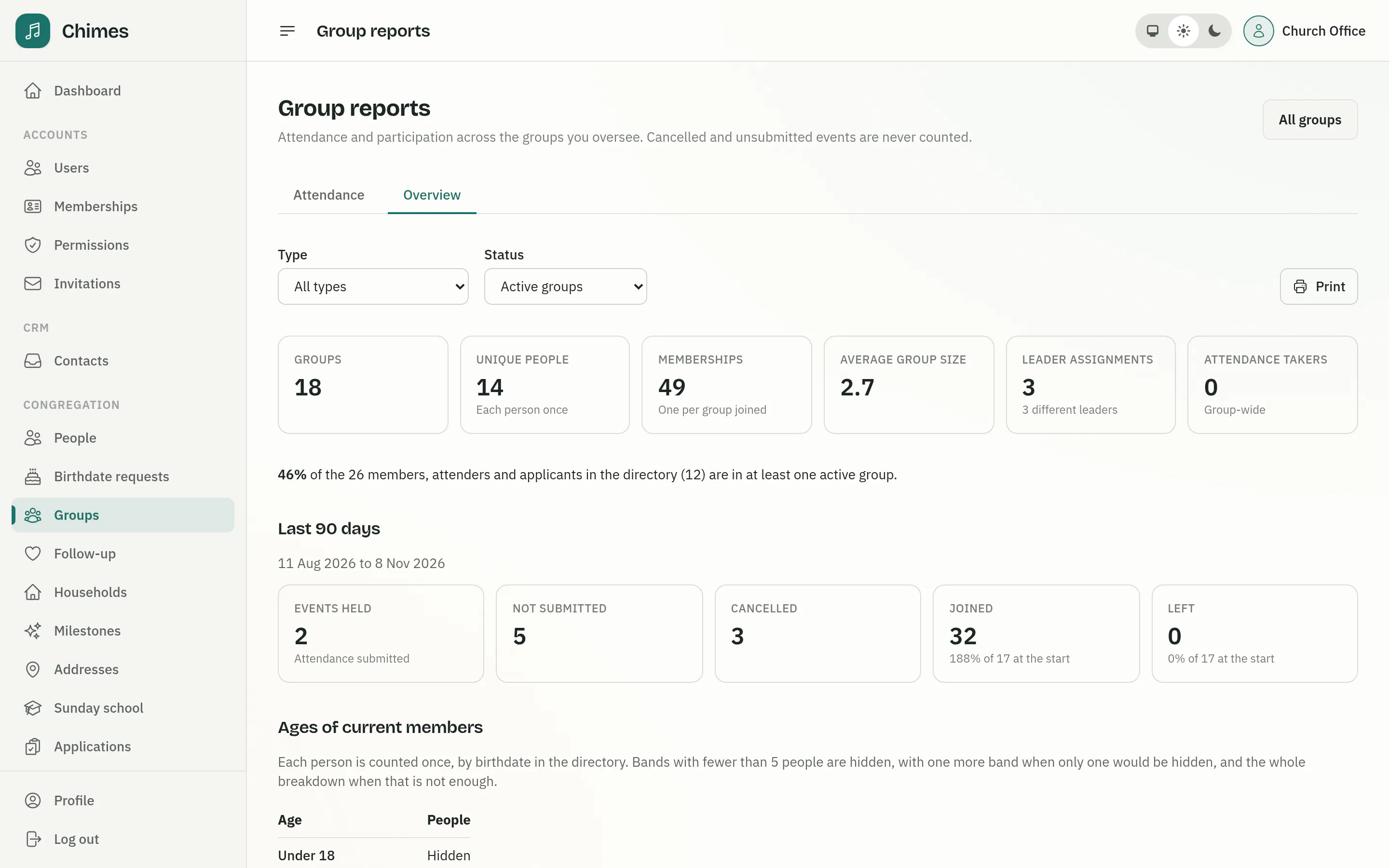
The attendance report pools every counted event across the groups you choose, by week or month, with a chart and its data. The overview shows how many people are in at least one group, joins and leavers in the period, and the ages of current members.
Age bands with fewer than five people are hidden, and cancelled events and events without a submitted register are reported separately rather than counted as absences.
- check Filter by type and by active or archived groups
- check Download as CSV or print
- check Type managers see only the groups of their types
Follow up when someone joins or leaves
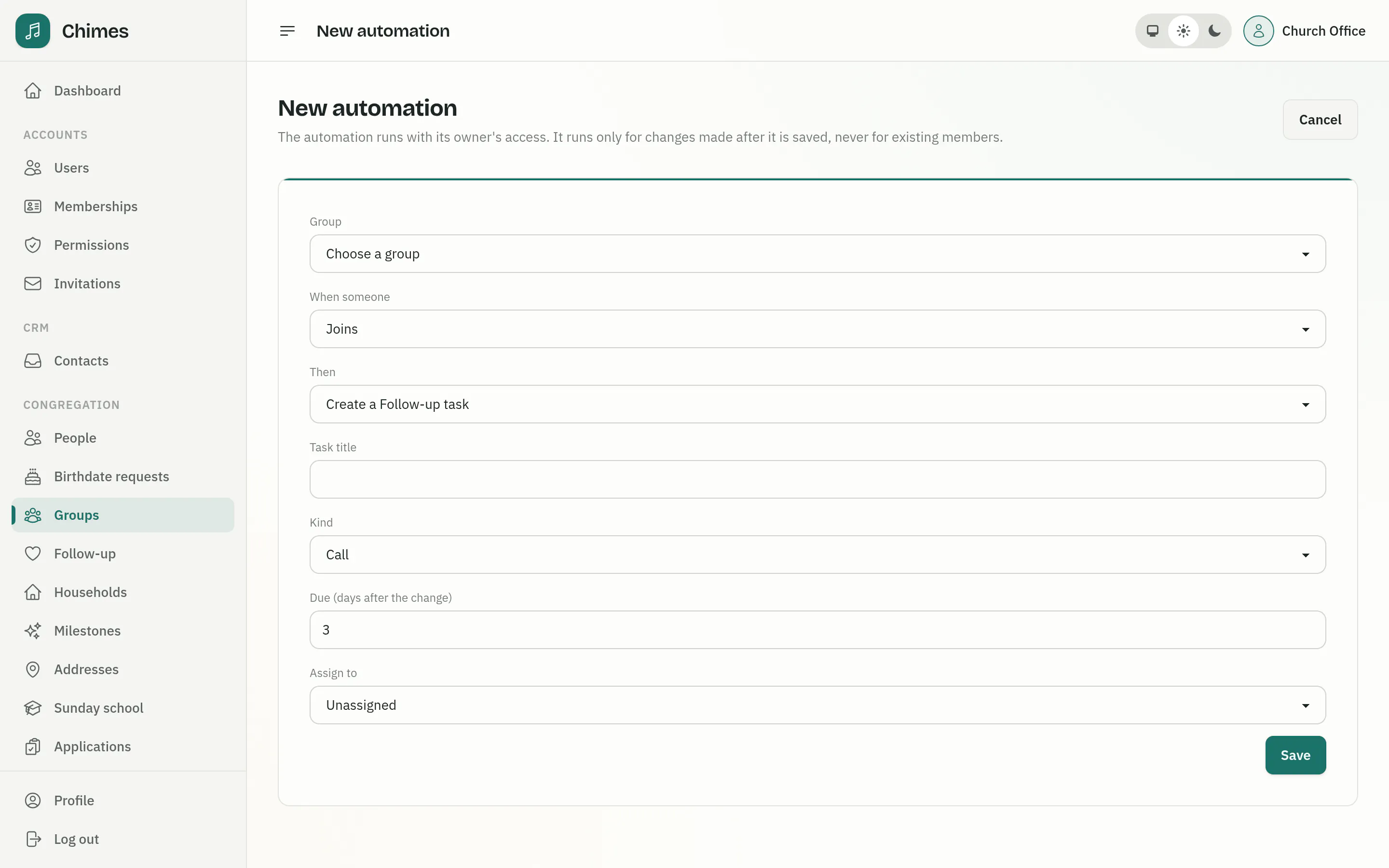
An automation watches one group. When someone joins it, leaves it or asks to join, it creates a Follow-up task, such as a welcome call due in three days, or adds the person to another group or removes them from one.
It applies only to changes made after it is saved, never to existing members, and changes made by one automation never start another. Failed runs wait in Needs attention until someone retries them.
- check Tasks in the assignee's Follow-up queue, or Unassigned
- check Up to 20 active automations a group, paused or archived, never deleted
- check Every change revision-checked and audited
Rules that protect young people in group chat
Chat is off for every group until the office turns it on. Ages come only from each person's recorded birthdate, and someone with no birthdate on record never counts as an adult.
Chat messages are kept rather than deleted, and there is no chat export.
-
01
Adults by default
Group chat is for people 18 and over with a birthdate on record.
-
02
Teenagers where you allow it
A group can admit ages 13 to 17. Their chat pauses unless two adult leaders can take part, and guardians can read it. Under-13s never chat.
-
03
Reports go to moderators
Anyone can report a message. Reports go to the church's chat moderators, or to the group's leaders when there are none.
-
04
Moderators act
They remove a message, lock a conversation or dismiss the report, and the author is not told who reported it.
-
05
Direct messages stay off
Private messages between adults who share a group exist behind a church-wide switch, which needs a moderator first.
Everything about a group on one page
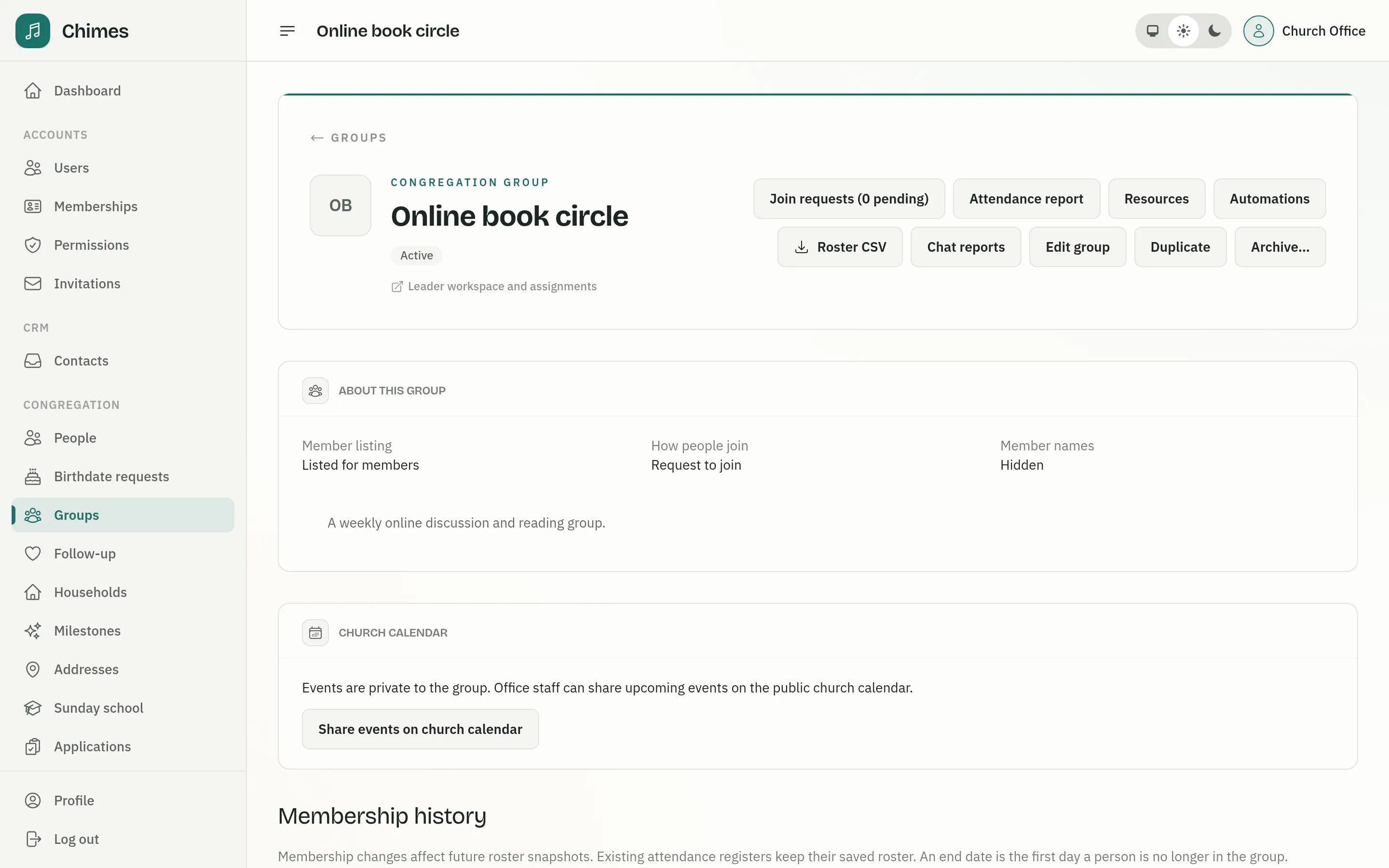
A group's page brings together its requests, attendance report, resources, automations and chat reports, with its membership history underneath. Staff add or end memberships with dates, and existing attendance registers keep the roster they were taken with.
From here the office also shares the group's upcoming events on the public church calendar, and opens the leader workspace to assign leaders and attendance takers.
- check Roster CSV, archived groups included
- check Duplicate a group with its settings for a new season
- check Archive, and restore later, unlisted until you list it again
Related features
Groups
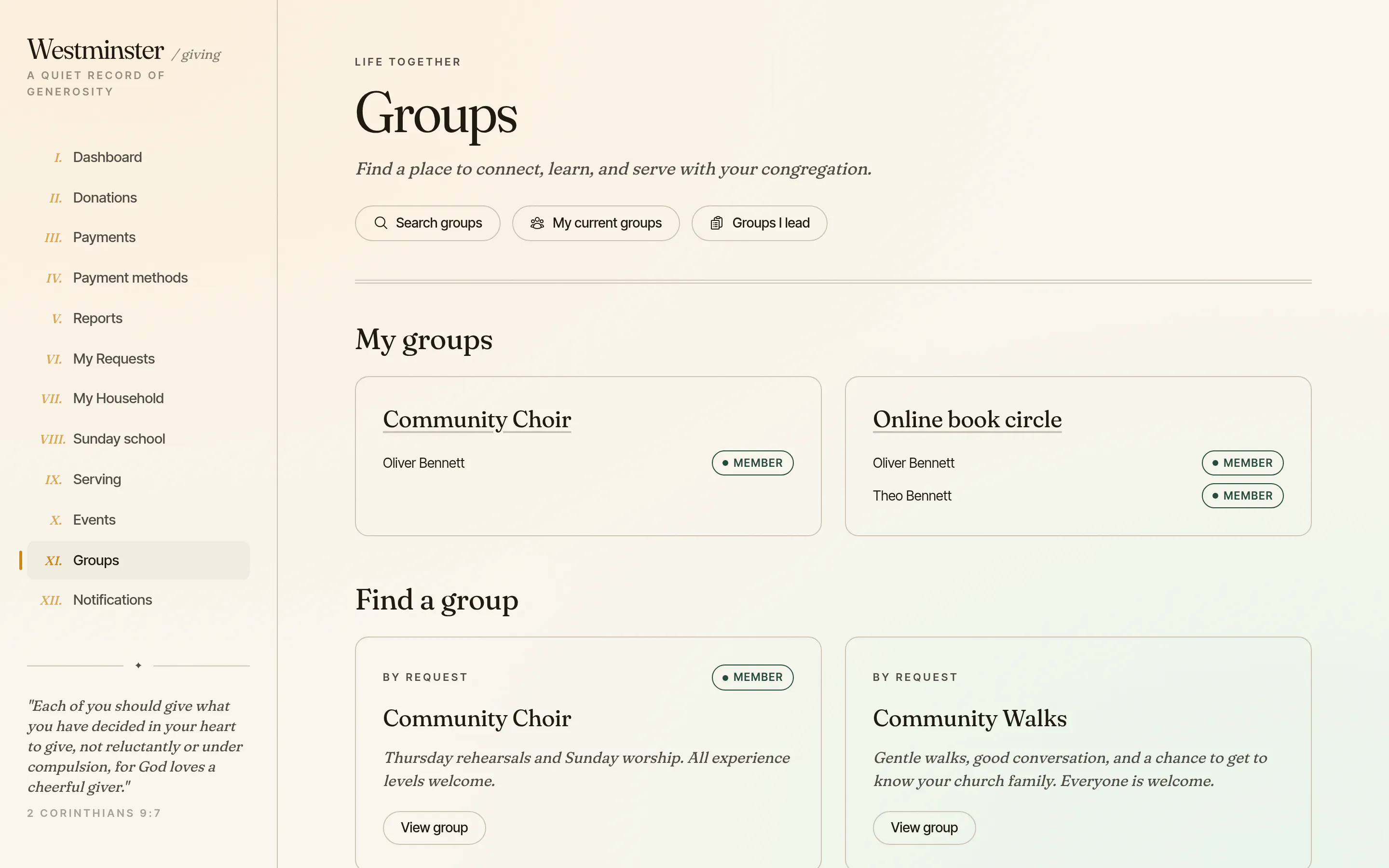
Members find and join groups, answer for their family's places at group events, chat and open shared files. Leaders run their own group from the same app.
See the feature arrow_forward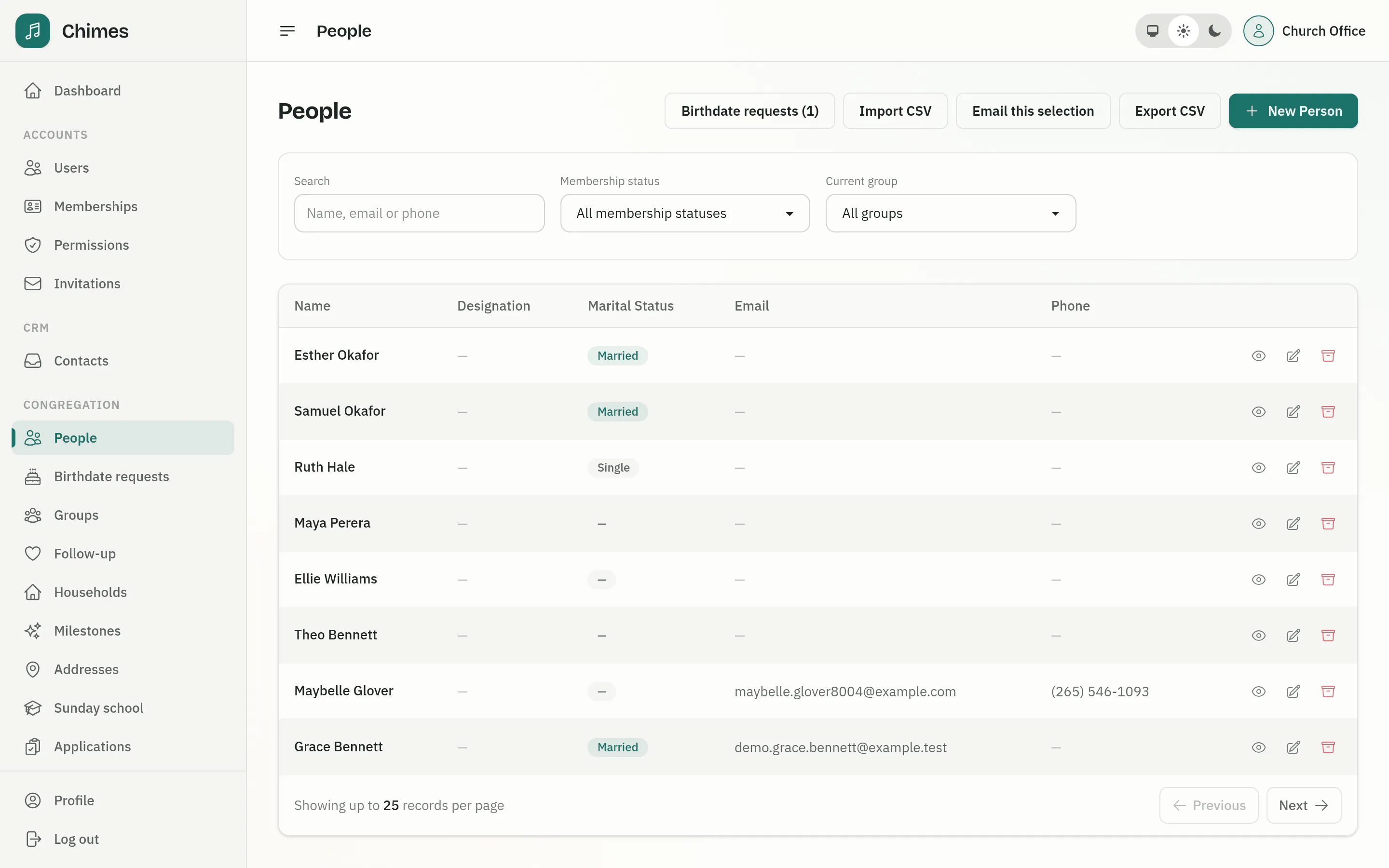
People and households
A directory of people and households with family relationships, milestones, ministry groups, membership status, and CSV import and export.
See the feature arrow_forward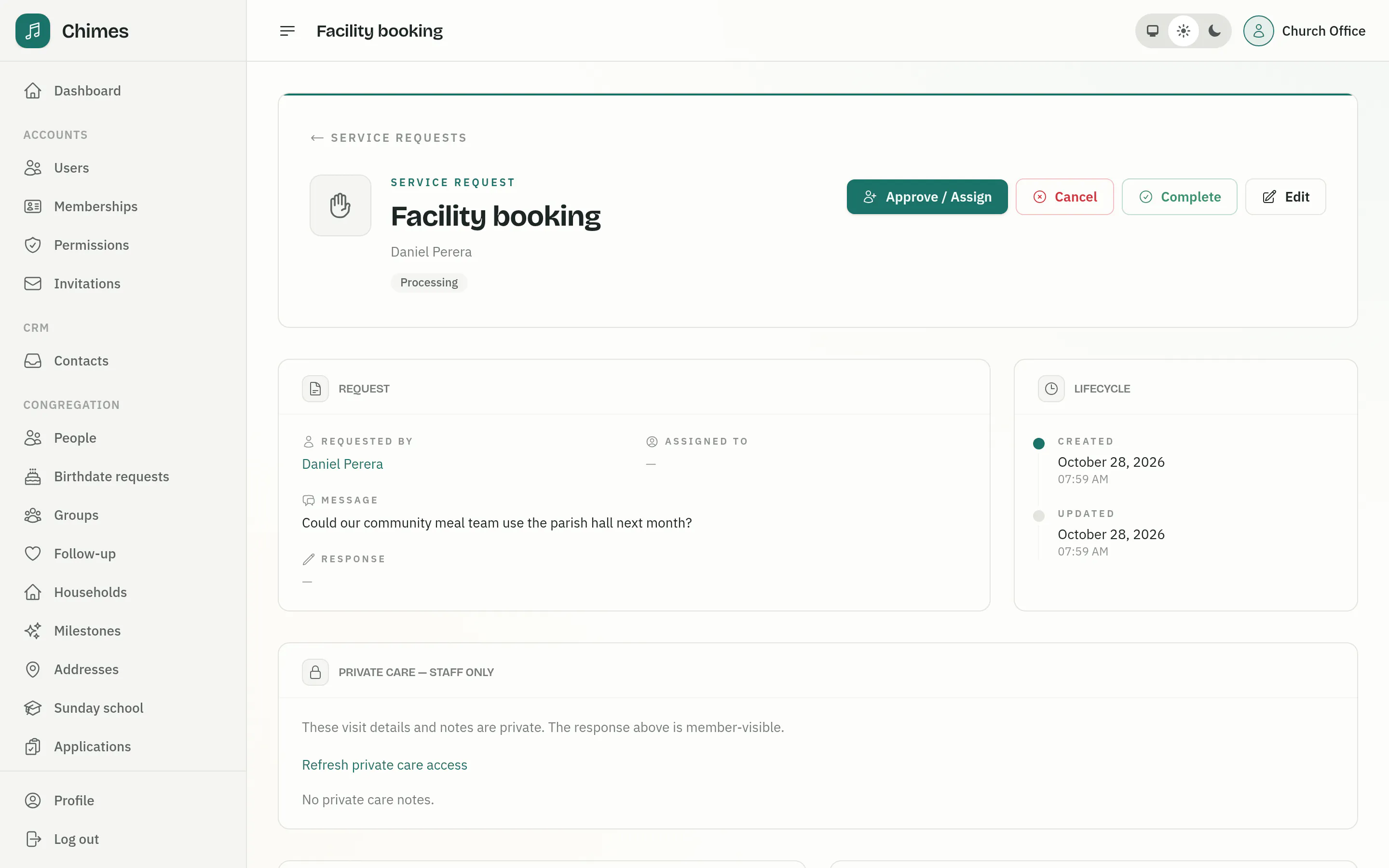
Pastoral care and follow-up
Member requests triaged, assigned and completed with private care notes, plus visitor welcome tasks and suggestions when someone stops coming.
See the feature arrow_forwardSee Chimes with your own congregation in mind.
Tell me how your church keeps its records today and where you would like Chimes hosted. I will come back with a deployment plan and a straight answer on what it will take.